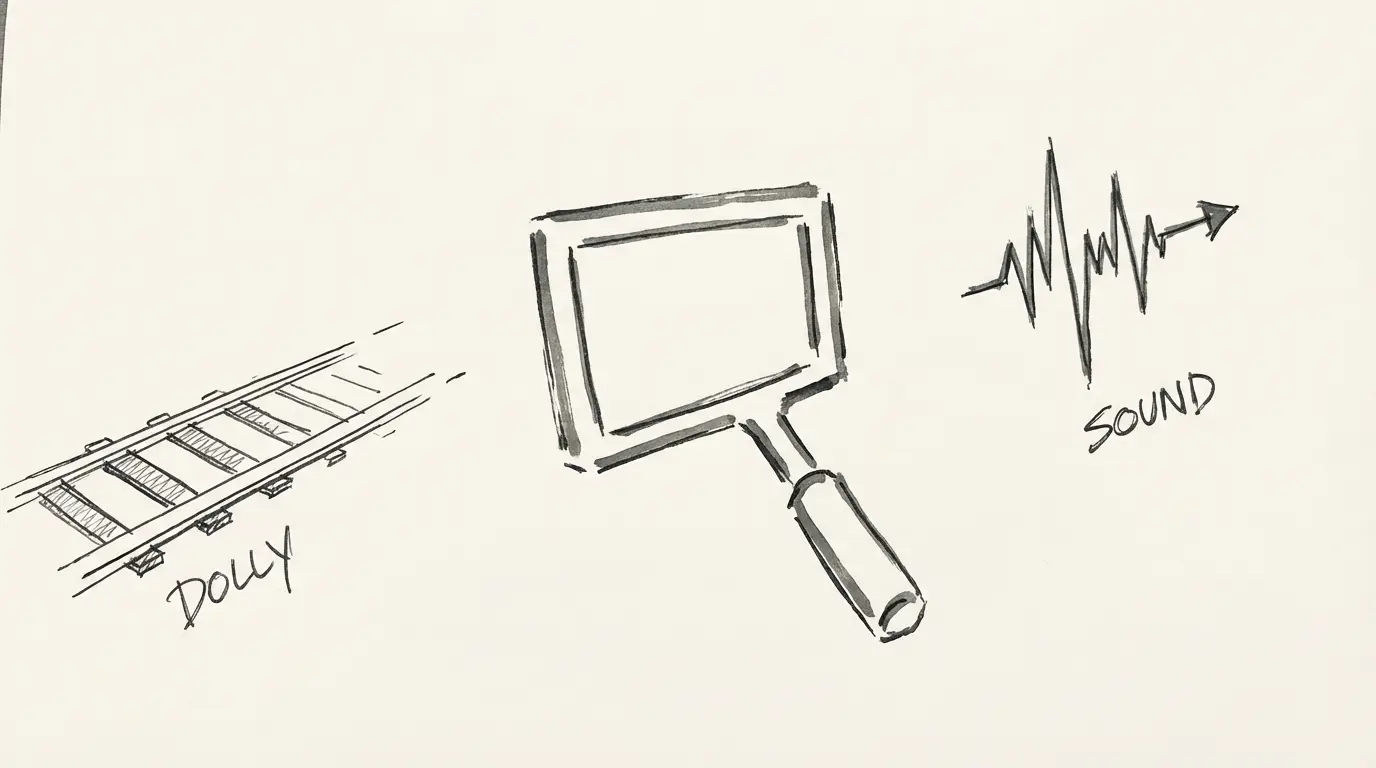
PixVerse V6: Cinema Camera Controls, Native Audio, and 15-Second Clips
PixVerse launched V6 on March 30, 2026 — 20+ cinema camera controls, native audio sync, multi-shot engine, and 1080p native output up to 15 seconds. Here's what changed and whether it fits your workflow.
TL;DR — 5 things to know
- ✅ 20+ cinema camera controls — dolly, crane, orbit, track, and more, all parameterized
- ✅ Native audio sync — ambient sound, effects, and dialogue generated alongside the video
- ✅ Multi-shot engine — define a sequence of scenes in one generation
- ✅ Up to 15 seconds at 1080p native — nearly double the previous 8-second cap
- ✅ 5 generation modes — T2V, I2V, Transition, Extend, Multi-Shot
Key Takeaway
PixVerse V6 is the best choice when camera control is a requirement, not a nice-to-have. 20+ parameterized camera movements and a multi-shot engine for scene-consistent sequences are capabilities that no other model in this comparison tier matches.
- Use PixVerse V6 if: you need specific camera moves (dolly, crane, orbit, tracking), native audio generation, multi-shot sequences with character continuity, or up to 15 seconds at 1080p
- Consider alternatives if: you need first/last frame composition control (Wan 2.7), budget-first audio generation (Veo 3.1 Lite), or confirmed maximum cinematic quality benchmark (Kling 3.0)
What Makes PixVerse V6 Different from Other AI Video Generators?
PixVerse V6 is the only AI video generator in its tier with 20+ parameterized cinema camera controls — dolly, crane, orbit, tracking, and more, each with adjustable speed and easing. It also generates native audio alongside video in the same pass, and supports a multi-shot engine for producing 2–3 scene sequences with consistent characters and lighting. None of these capabilities existed in V5.6.
What Is PixVerse V6?
PixVerse V6 launched on March 30, 2026 — two months after V5.6 (January 26, 2026). This is the sixth major release in the PixVerse lineup and the most significant architectural upgrade to date.
The headline additions are not incremental quality improvements. They are new capability categories: cinema camera controls, native audio generation, and a multi-shot engine. Each addresses a different professional workflow gap that previous versions had.
PixVerse has positioned V6 as a production-grade tool for creators who need more than just "generate a clip." The camera control system in particular reflects a direct response to what creators have been asking for — not just better footage, but directorial control over how that footage is framed.
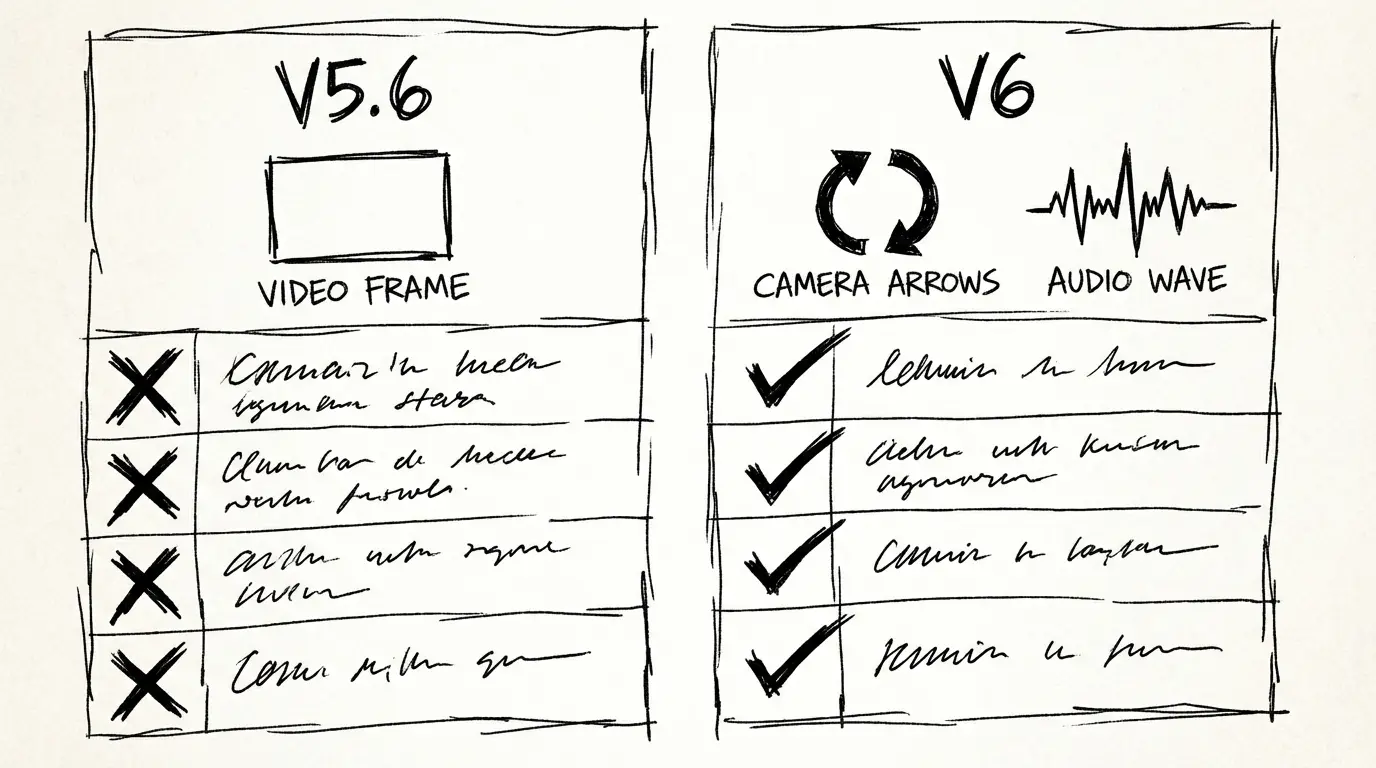
What Changed from V5.6
| Feature | V5.6 | V6 |
|---|---|---|
| Text-to-video | ✅ | ✅ |
| Image-to-video | ✅ | ✅ |
| Video transition (I2V anchor) | ✅ | ✅ |
| Clip extension (Extend) | ✅ | ✅ |
| Multi-shot engine | ❌ | ✅ |
| Cinema camera controls | Basic | ✅ 20+ controls |
| Native audio generation | ❌ | ✅ |
| Maximum clip duration | 8s | 15s |
| Native resolution | 720p | 1080p |
| Supported aspect ratios | 16:9, 9:16, 1:1 | 16:9, 9:16, 1:1, 4:3, 3:4 |
The jump from 8 to 15 seconds and from 720p to 1080p native are significant on their own. Combined with audio sync and the multi-shot engine, V6 represents a meaningful step up in what a single generation can produce.
Cinema Camera Controls: What 20+ Actually Means
The camera control system is the most technically interesting part of V6. Previous video generation models either ignored camera behavior (leaving the model to decide) or offered a small set of named presets. V6 gives you parameterized control.
The supported movements include:
Translation moves: dolly in, dolly out, truck left, truck right, boom up, boom down
Rotation moves: pan left, pan right, tilt up, tilt down, roll
Combined moves: orbit, crane shot, tracking, handheld, dolly zoom (Vertigo effect)
Control parameters: speed (slow/medium/fast), easing (linear/ease-in/ease-out), start frame
This is not a "cinematic mode" toggle. These are independently configurable parameters you apply per clip. In practice, it means you can specify "crane shot rising, slow, ease-in over the first 2 seconds" and the model will attempt to execute that.
For product work, this translates directly: a slow dolly-in on a hero shot is not a style choice you hope the model makes — it's something you specify.
Native Audio: How It Works
PixVerse V6 generates audio as part of the generation process, not as a post-processing addition. The audio types you can influence:
Ambient sound: Described in the prompt or inferred from the scene. A kitchen scene generates kitchen ambience. A coastal road generates wind and waves.
Sound effects: Synchronized to specific visual events. A product landing on a table generates an impact sound at the correct frame.
Dialogue: Characters speaking lines you specify. Lip-sync accuracy varies — shorter, clearly phrased dialogue produces more reliable sync.
The audio is generated in the same pass as the video. You don't need a separate audio generation step or a post-processing workflow to add sound to V6 outputs.
For social content and product demos, this is practically useful: the output is ready to post without additional audio work in most cases.
Multi-Shot Engine
The multi-shot engine is the most workflow-changing feature in V6. Previously, creating a sequence of scenes required generating each clip individually and editing them together in post. V6 allows you to define a shot list within a single generation.
How it works: You describe multiple scenes in sequence — scene A (establishing), scene B (close-up), scene C (reaction). V6 generates them as a single continuous clip with consistent characters, lighting, and environment across shots.
What this solves: Continuity. When you stitch separately generated clips, characters may look different between shots, lighting can shift, and spatial relationships change. The multi-shot engine maintains consistency because all shots are generated in the same pass.
Current limitations: The multi-shot engine works best with 2–3 scenes per generation. More complex shot lists produce less consistent output. At 15 seconds maximum, you have enough time for 2–3 well-paced shots.
Supported Generation Modes
PixVerse V6 offers five distinct modes:
| Mode | Description | Best For |
|---|---|---|
| Text-to-Video (T2V) | Generate from prompt only | Concept exploration, scenes without a specific visual anchor |
| Image-to-Video (I2V) | Animate from a reference image | Product shots, portrait motion, specific visual fidelity |
| Transition | I2V with two anchor images (start + end) | Brand reveals, before/after, object transform |
| Extend | Continue an existing clip | Lengthening a good take, adding seconds to a generated clip |
| Multi-Shot | Sequenced scenes in one generation | Short-form narrative, product demo sequences |
On this platform, Text-to-Video and Image-to-Video are available for direct generation.
Who Should Use PixVerse V6
| Scenario | Recommended |
|---|---|
| Product demo with specific camera move | V6 |
| Social content (Shorts, Reels, TikTok) | V6 |
| Multi-scene sequence without manual stitching | V6 |
| Simple text-to-clip, no camera control needed | Any model |
| Max quality for large-screen display | Compare with Standard-tier models |
The camera control system and multi-shot engine are V6's clearest differentiation from the previous generation. If those features matter to your workflow, V6 is the obvious choice. If you just need a reliable clip from a text prompt, V6 is still competitive but the additional capabilities aren't required.
How to Use PixVerse V6
Option 1: Use this platform (no API setup)
Go to the PixVerse V6 generator. Write your prompt, select duration and aspect ratio, and generate. No API key or account setup required.
Option 2: Access via fal.ai API
PixVerse V6 is available through fal.ai. You'll need a fal.ai account and API key. The model is available in both T2V and I2V modes. Pricing varies by resolution and whether audio generation is enabled.
Option 3: PixVerse platform directly
PixVerse operates their own web platform at pixverse.ai. Web access allows you to use all five generation modes, including Transition and Multi-Shot.
How PixVerse V6 Compares
| Feature | PixVerse V6 | Veo 3.1 Lite | Wan 2.7 | Kling 3.0 |
|---|---|---|---|---|
| Parameterized camera controls | ✅ 20+ | ❌ | ❌ | Limited |
| Multi-shot engine | ✅ | ❌ | ❌ | ❌ |
| Native audio | ✅ | ✅ | ❌ | ❌ |
| Max clip duration | 15s | 8s | 15s | 10s |
| Native resolution | 1080p | 720p / 1080p | 1080p | 1080p |
| First / last frame control | ❌ | ❌ | ✅ | ❌ |
| Instruction-based editing | ❌ | ❌ | ✅ | ❌ |
| T2V + I2V | ✅ | ✅ | ✅ | ✅ |
| Open source | ❌ | ❌ | Planned | ❌ |
| Best for | Camera control, multi-shot | Budget audio generation | FLF2V, multi-reference | Cinematic quality |
PixVerse V6 is differentiated by camera control precision. If your work requires directing a specific shot — a slow crane rising, a tracking move, a dolly zoom — V6 is currently the only model in this comparison that lets you parameterize those moves. For audio generation at lower cost, Veo 3.1 Lite is more efficient. For exact start/end composition control, Wan 2.7's FLF2V is unique.
Try PixVerse V6
The PixVerse V6 generator gives you direct access without API setup. Text-to-video and image-to-video modes are available.
Go Deeper
- Comparison: PixVerse V6 vs V5.6 — What Actually Changed
Related Reading
- PixVerse V6 vs V5.6 — Full spec breakdown of what changed between versions
- Wan 2.7 — If you need first/last frame control or multi-reference video consistency
- Veo 3.1 Lite — Audio-first alternative at lower cost per second
FAQ
Disclosure
Feature specifications and release dates are sourced from PixVerse's official announcement (March 30, 2026) and the fal.ai PixVerse V6 API documentation. Pricing information reflects fal.ai rates at time of publication and may change.
Author

More Posts
AI Image Agent: Generate One Image or a Hundred — Without Switching Tools
NanoBanana's AI Image Agent handles everything from single concept images to batch style transfers in one conversation. No prompt engineering required.
Veo 3.1 Lite Prompt Guide: 20+ Ready-to-Use Prompts for Cinematic AI Video
Learn exactly how to prompt Veo 3.1 Lite for cinematic results. Covers shot types, camera movement, audio, and 20+ copy-paste prompts across genres — no fluff.
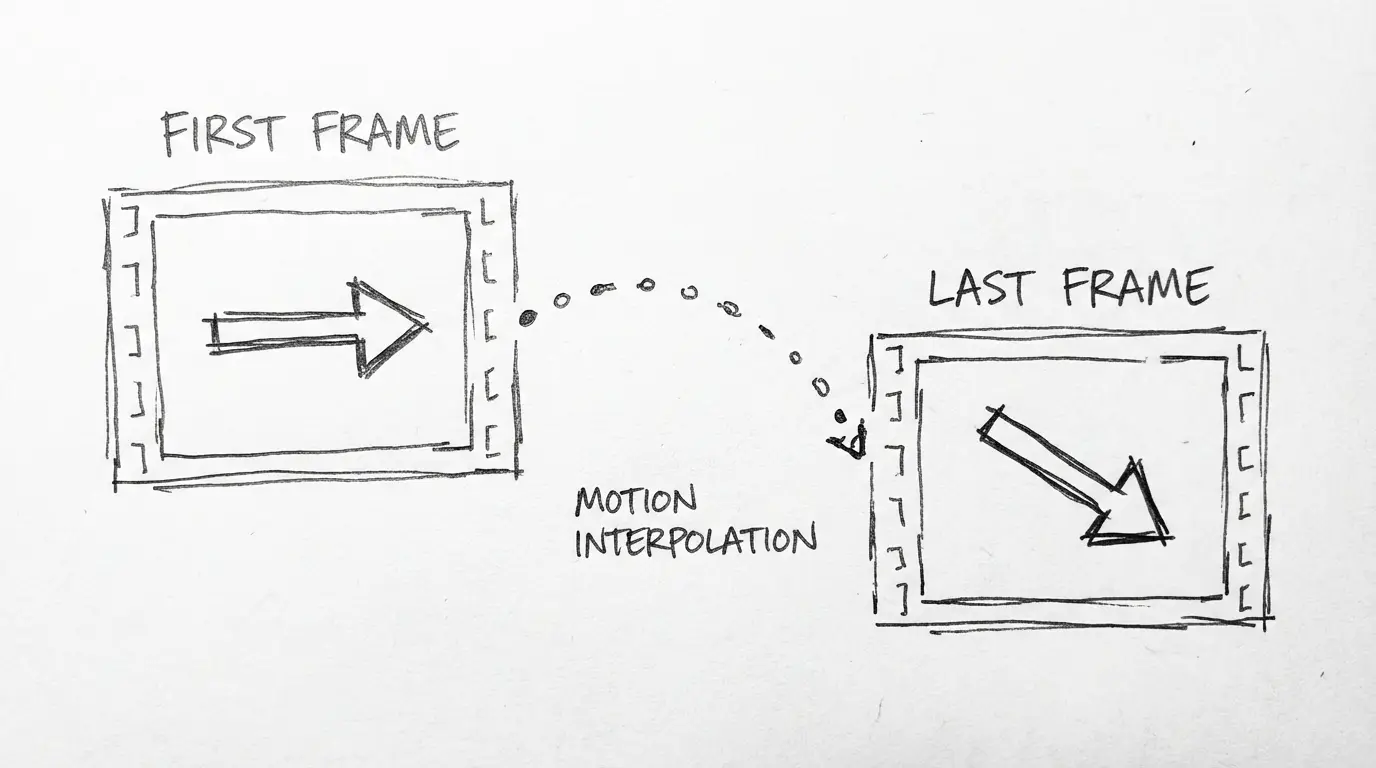
Wan 2.7: Alibaba's New Video Model with First-Frame Control and 15-Second Clips
Wan 2.7 brings first/last frame control, multi-reference video input, and instruction-based editing to Alibaba's open-source video lineup. Here's what changed from Wan 2.6.